How to Fix Minecraft Server Lag: Complete 2026 Guide
Experiencing Minecraft server lag? Learn proven methods to reduce lag, improve TPS, and optimize your server performance. Step-by-step troubleshooting guide.
ChunkPod Team · · 12 min read
How to Fix Minecraft Server Lag: Complete 2026 Guide
Is your Minecraft server running slow? Players complaining about lag spikes? You're not alone. Server lag is one of the most common issues server admins face, but the good news is that most lag problems can be fixed with the right optimizations.
In this comprehensive guide, we'll walk you through exactly how to diagnose and fix Minecraft server lag, covering everything from simple tweaks to advanced optimization techniques.
Understanding Minecraft Server Lag
Before we dive into fixes, it's important to understand what's actually causing the lag. There are three main types of lag in Minecraft:
1. Server Lag (TPS Issues)
Symptoms: Mobs freeze, crops don't grow, furnaces stop smelting, delayed block placement Cause: Server can't keep up with game tick calculations (target is 20 TPS) Fix: Server-side optimization (this guide)
2. Network Lag (Latency)
Symptoms: Other players teleporting, delayed chat messages, rubber-banding Cause: Poor internet connection or distance from server Fix: Better hosting location, improved network infrastructure
3. Client Lag (FPS Issues)
Symptoms: Low frame rate, stuttering, choppy graphics Cause: Player's computer performance Fix: Client-side optimization (reduce render distance, install Sodium)
This guide focuses on fixing server lag (TPS issues) - the most common type of lag that affects all players simultaneously.
Check Your Current Server Performance
Before making any changes, you need to establish a baseline. Here's how to check if your server is actually lagging:
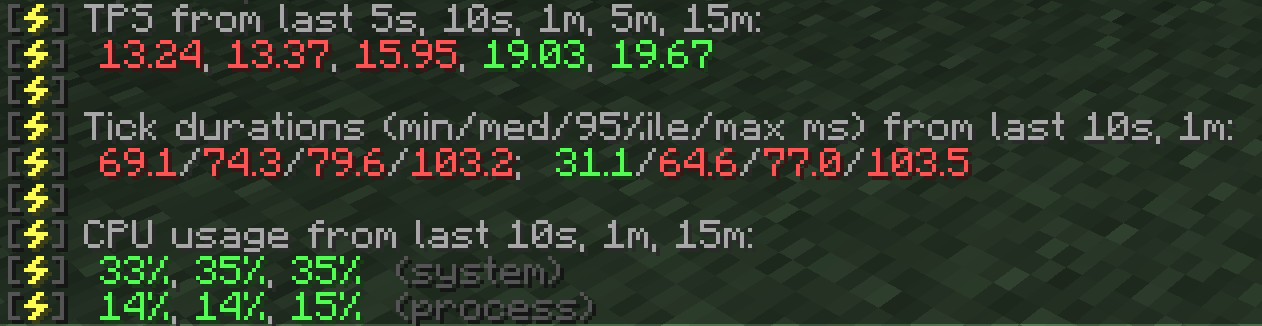
Monitor TPS (Ticks Per Second)
Minecraft servers should maintain 20 TPS (ticks per second) for optimal performance. Anything below 19 TPS is noticeable lag.
How to check TPS:
-
Spark Plugin (recommended)
code/spark tpsShows real-time TPS and memory usage
-
Paper/Spigot Built-in
code/tpsDisplays current TPS average
-
Spark Profiler (bundled with Paper; Timings was removed in Paper 1.21.3+)
code/spark profiler start # Wait 5-10 minutes during peak usage /spark profiler stopGenerates detailed performance report with URL
What the numbers mean:
- 20 TPS: Perfect - no lag
- 19-20 TPS: Acceptable - minor lag
- 15-19 TPS: Noticeable lag - optimization needed
- Below 15 TPS: Severe lag - immediate action required
Identify What's Causing Lag
Run the Spark profiler to see exactly what's consuming server resources. Spark is bundled with Paper and is available as a plugin or mod for Spigot, Fabric, Forge, and NeoForge:
/spark profiler start
# Wait 3-5 minutes
/spark profiler stop
Common culprits shown in reports:
- Entities: Too many mobs, items, or minecarts
- Tile Entities: Hoppers, furnaces, redstone contraptions
- Chunk Loading: Players exploring new areas
- Plugins: Poorly optimized or conflicting plugins
- World Generation: Generating new chunks on the fly
Quick Fixes (Apply These First)
These are the fastest, highest-impact optimizations you can make right now.
1. Pre-generate Your World
Impact: Massive TPS improvement Time: 30 minutes setup Difficulty: Easy
When players explore new areas, the server has to generate chunks on the fly - this is extremely resource-intensive and causes massive lag spikes.
Solution: Pre-generate chunks using Chunky plugin
# Install Chunky
# Download from https://hangar.papermc.io/pop4959/Chunky

# Set world border
/worldborder set 10000

# Start pre-generation
/chunky world world
/chunky radius 5000
/chunky start

# Monitor progress
/chunky progress
Recommended pre-gen radius:
- Small server (5-10 players): 3,000 blocks
- Medium server (10-30 players): 5,000 blocks
- Large server (30+ players): 10,000 blocks
Note: Pre-generation can take several hours for large areas. Run it during off-peak times.
2. Optimize server.properties
Edit your server.properties file with these lag-reducing settings:
# Reduce simulation and view distance
view-distance=6
simulation-distance=6

# Network optimization
network-compression-threshold=256

# Entity settings
entity-broadcast-range-percentage=100
View distance explained:
- Default: 10 chunks
- Recommended: 6-8 chunks (balanced)
- Low-end: 4-6 chunks (best performance)
Since 1.18, simulation-distance controls how far from players entities, crops, and redstone are ticked, so it drives most of the tick cost. view-distance mainly affects how many chunks are loaded and sent to players, which costs memory and bandwidth more than TPS.
3. Install Paper/Purpur (If Using Vanilla/Spigot)
If you're running Vanilla or Spigot, switching to Paper or Purpur usually improves performance. Paper does patch some vanilla mechanics by default (for example TNT and sand duplication), so check its configuration if your players rely on them.
Performance gains:
- Better TPS on most servers
- Built-in optimizations for entities, chunks, and redstone
- Extensive configuration options
- Most Bukkit/Spigot plugins work (Paper), and Purpur runs Paper plugins too
How to switch:
- Download Paper from papermc.io
- Stop your server
- Replace
server.jarwithpaper.jar - Start server
- Configure
paper-world-defaults.yml(see below)
No data loss - worlds, plugins, and configs are preserved.
Not sure which server type to use? Check our Paper vs Spigot vs Fabric vs Forge comparison.
4. Clear Unnecessary Entities
Excessive entities are a leading cause of lag. Here's how to clean them up:
# Kill all item drops
/kill @e[type=item]

# Kill all loose XP orbs
/kill @e[type=experience_orb]

# Kill all minecarts
/kill @e[type=minecart]

# Remove all oak boats
/kill @e[type=minecraft:oak_boat]
Since 1.21.2, each boat and raft has its own entity type (oak_boat, spruce_boat, birch_boat, bamboo_raft, and so on), so type=boat no longer works. Repeat the command for each wood type you need to clear.
Automated cleanup: The ClearLagg plugin can remove entities on a schedule. Its auto-removal section looks like this:
# ClearLagg config.yml
auto-removal:
  enabled: true
  autoremoval-interval: 460 # Seconds between removals
ClearLagg is largely unmaintained, and Paper's own settings (such as alt-item-despawn-rate and entity limits) usually handle this better.
Advanced Optimizations (Paper/Purpur Servers)
If you're running Paper or Purpur, these advanced configurations can further improve performance.
Configure paper-world-defaults.yml
Edit config/paper-world-defaults.yml:
entities:
  spawning:
    # Reduce entity spawn rates
    all-chunks-are-slime-chunks: false
    alt-item-despawn-rate:
      enabled: true
      items:
        cobblestone: 300 # Despawn in 15 seconds instead of 5 minutes
        netherrack: 300
        sand: 300
        dirt: 300
        gravel: 300

  behavior:
    # Optimize mob AI
    zombie-villager-infection-chance: 50.0
    disable-chest-cat-detection: true
    spawner-nerfed-mobs-should-jump: false

chunks:
  # Optimize chunk loading
  auto-save-interval: 6000 # Save every 5 minutes (default: 6000)
  prevent-moving-into-unloaded-chunks: true

  # Cap how many of each entity type are saved per chunk (default: -1, no limit)
  entity-per-chunk-save-limit:
    experience_orb: 16
    snowball: 16
    arrow: 16

# Hopper settings
hopper:
  disable-move-event: false # Default; only set true if no plugin needs hopper move events
  ignore-occluding-blocks: true

# Villager AI tick rates (higher = checked less often)
tick-rates:
  sensor:
    villager:
      secondarypoisensor: 80 # Default: 40
  behavior:
    villager:
      validatenearbypoi: 120 # Default: -1 (vanilla rate)
Optimize spigot.yml
Edit spigot.yml:
world-settings:
  default:
    # Radius in chunks around players where mobs can spawn
    mob-spawn-range: 6 # Default: 8

    # Entity activation ranges (reduce mob AI calculations when far from players)
    entity-activation-range:
      animals: 16 # Default: 32
      monsters: 24 # Default: 32
      raiders: 48
      misc: 8 # Default: 16
      water: 8 # Default: 16
      villagers: 16 # Default: 32
      flying-monsters: 32

    # How far away entities are sent to (and visible for) players.
    # These are the defaults; lowering them saves some network and tracking work
    # but makes mobs pop in closer to players
    entity-tracking-range:
      players: 48
      animals: 48
      monsters: 48
      misc: 32
      other: 64

    # Merge nearby entities
    merge-radius:
      item: 3.5
      exp: 4.0

    # Nerf spawner mobs (reduce AI calculations)
    nerf-spawner-mobs: true
Limit Redstone and Hoppers
Redstone contraptions and hoppers are extremely resource-intensive.
Install a limiter plugin:
- Insights: Limits tile entities (hoppers, furnaces) per chunk
Insights defines its limits in separate files in its limits folder. Check the plugin's documentation for the current format and set a per-chunk cap for hoppers and other tile entities that suits your builds.
Optimize hoppers in paper-world-defaults.yml:
hopper:
  cooldown-when-full: true
  disable-move-event: false
Plugin Optimization
Plugins can be a major source of lag if not managed properly. If you're new to plugins, check our guide on the 10 best Minecraft server plugins.
Audit Your Plugins
Remove unnecessary plugins first. Each plugin adds overhead.
-
Test plugin impact:
code/spark profiler start # Wait 3-5 minutes during peak usage /spark profiler stop -
Check the spark report for plugin performance
-
Remove or replace laggy plugins:
- Heavy world management plugins
- Excessive particle effect plugins
- Poorly coded custom plugins
Replace Laggy Plugins
| Laggy Plugin | Lightweight Alternative |
|---|---|
| WorldEdit (running constantly) | FastAsyncWorldEdit (FAWE) |
| EssentialsX Chat | VentureChat |
| ChestShop | QuickShop |
Keep Plugins Updated
Outdated plugins often have memory leaks or inefficient code. Always use the latest stable versions.
Hardware & Hosting Optimization
Sometimes, the issue isn't your configuration - it's your server resources.
Check Resource Usage
# Check RAM usage (Linux)
free -h

# Check CPU usage
top

# Check disk I/O
iostat -x 1
Signs you need better hardware:
- RAM usage consistently above 90%
- CPU usage consistently above 80%
- Disk I/O wait time above 10%
Allocate Proper RAM
Minimum RAM requirements:
- Vanilla (10 players): 2 GB
- Paper/Spigot (20 players): 4 GB
- Modded (10 players): 6-8 GB (see our best Minecraft mods guide)
- Heavy modpacks (10 players): 12-16 GB
Optimal JVM flags for Minecraft:
Check your Java version first: Minecraft 1.20.5 through 1.21.x needs Java 21, and 26.1 and newer need Java 25.
java -Xms4G -Xmx4G \
  -XX:+UseG1GC \
  -XX:+ParallelRefProcEnabled \
  -XX:MaxGCPauseMillis=200 \
  -XX:+UnlockExperimentalVMOptions \
  -XX:+DisableExplicitGC \
  -XX:+AlwaysPreTouch \
  -XX:G1NewSizePercent=30 \
  -XX:G1MaxNewSizePercent=40 \
  -XX:G1HeapRegionSize=8M \
  -XX:G1ReservePercent=20 \
  -XX:G1HeapWastePercent=5 \
  -XX:G1MixedGCCountTarget=4 \
  -XX:InitiatingHeapOccupancyPercent=15 \
  -XX:G1MixedGCLiveThresholdPercent=90 \
  -XX:G1RSetUpdatingPauseTimePercent=5 \
  -XX:SurvivorRatio=32 \
  -XX:+PerfDisableSharedMem \
  -XX:MaxTenuringThreshold=1 \
  -Dusing.aikars.flags=https://mcflags.emc.gs \
  -Daikars.new.flags=true \
  -jar server.jar nogui
Set Xms and Xmx to the same value to prevent garbage collection lag spikes.
Upgrade to Better Hosting
If you've optimized everything and still have lag, it might be time to upgrade your hosting plan or switch providers.
What to look for in hosting:
- NVMe SSD storage (not HDD)
- Modern CPUs (AMD Ryzen 5000+ or Intel 12th gen+)
- DDoS protection
- Low-latency network
- Automatic backups
Check any host against this list before you move. ChunkPod is in early access. You can join the waitlist at chunkpod.com.
Monitoring & Maintenance
Lag prevention is an ongoing process. Set up monitoring to catch issues early.
Essential Monitoring Tools
-
Spark - Real-time TPS and profiling
code/spark tps /spark profiler start -
Plan - Player analytics and server health
- Track TPS history
- Monitor player count trends
- Identify peak usage times
-
CoreProtect - Rollback lag-causing builds
- Find who built lag machines
- Rollback problematic contraptions
code/co inspect
Regular Maintenance Tasks
Daily:
- Check TPS during peak hours
- Monitor player count vs. performance
Weekly:
- Check the vanilla
/worldbordersize and pre-generate any expansion with Chunky - Remove old backups to free disk space
- Update plugins to latest versions
Monthly:
- Run a full spark profiler report
- Audit and remove unused plugins
- Test server with increased player load
Common Lag Scenarios & Solutions
Scenario 1: "Server lags every 5 minutes"
Diagnosis: Auto-save lag spikes
Solution:
# paper-world-defaults.yml
chunks:
  auto-save-interval: 12000 # Save every 10 minutes instead of 5
Consider using incremental saves or scheduled restarts instead of frequent auto-saves.
Scenario 2: "TPS drops when players explore new areas"
Diagnosis: On-the-fly chunk generation
Solution:
- Pre-generate world with Chunky (see Quick Fixes above)
- Set world border
- Reduce view distance to 6
Scenario 3: "Lag started after installing a new plugin"
Diagnosis: Plugin conflict or inefficient plugin
Solution:
- Remove the plugin
- Run
/spark profilerto confirm lag is gone - Find alternative plugin or contact developer
Scenario 4: "Only lags during entity/mob spawning events"
Diagnosis: Too many entities being spawned
Solution:
# spigot.yml
world-settings:
  default:
    mob-spawn-range: 4
    entity-activation-range:
      animals: 16
      monsters: 24
Install ClearLagg with aggressive entity removal.
Scenario 5: "Players report lag but TPS is 20"
Diagnosis: Network latency (not server lag)
Solution:
- Check server location vs. player locations
- Test internet speed/ping
- Consider hosting in better region
- Check for DDoS attacks
Troubleshooting Checklist
Still experiencing lag? Work through this checklist systematically:
- Confirmed TPS is below 20 (not client or network lag)
- Generated a spark report to identify cause
- Pre-generated world chunks with Chunky
- Reduced view distance to 6-8
- Switched to Paper or Purpur
- Cleared unnecessary entities (
/kill @e[type=item]) - Optimized
paper-world-defaults.ymlandspigot.yml - Removed or replaced laggy plugins
- Updated all plugins to latest versions
- Allocated sufficient RAM (4GB minimum for 20 players)
- Using optimized JVM flags (Aikar's flags)
- Set world border to prevent infinite exploration
- Limited hoppers and redstone contraptions per chunk
- Checked hardware resources (CPU, RAM, disk I/O)
- Tested with fewer players to isolate issue
- Considered upgrading hosting plan
Conclusion
Minecraft server lag is frustrating, but most lag issues can be fixed with proper optimization. Start with the quick fixes:
- Pre-generate your world with Chunky
- Reduce view distance to 6-8
- Switch to Paper or Purpur
- Clear unnecessary entities
Then move on to advanced optimizations in paper-world-defaults.yml and spigot.yml for fine-tuning.
Remember: Lag prevention is ongoing maintenance. Monitor your server regularly, update plugins, and adjust settings as your player base grows.
Need Help?
If you've tried everything and still have lag issues:
- Share your spark report on the PaperMC Discord
- ChunkPod is in early access. You can join the waitlist at chunkpod.com.
Running a lag-free server matters. Players won't stay on a laggy server, no matter how great your community is. Invest the time to optimize now, and your players will thank you.
Related Guides: